
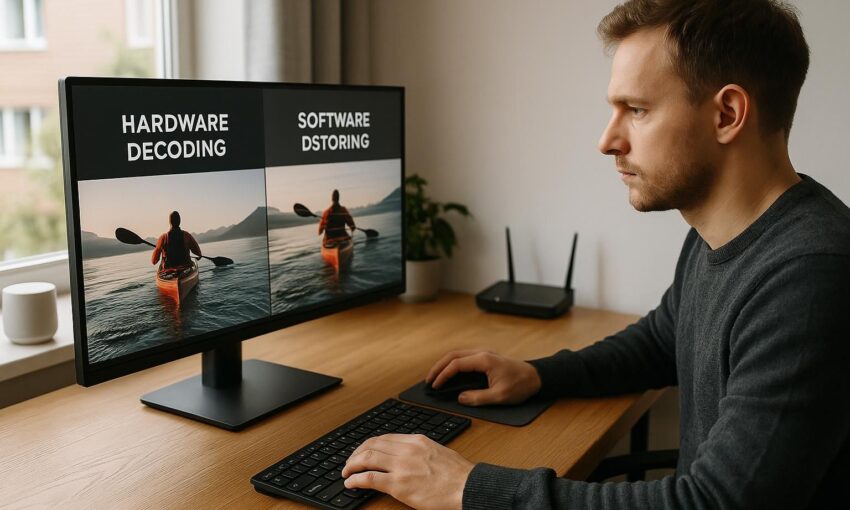
Live television over home broadband asks more from a screen than a simple web clip. The device has to receive data, rebuild each frame, handle audio, maintain sync and keep enough buffer for changes in Wi-Fi or network load. When any part falls behind, the symptom is familiar: a clean picture turns into judder, lip-sync drifts, or the stream drops to a softer resolution just as the action speeds up. In 2026, most UK homes have enough headline broadband speed for HD and often for 4K, but decoding still matters.
That is why hardware decoding vs software streaming is worth understanding before you replace your router or blame the line. Start with the local chain: the screen, stick, box, app settings and network path. If the decoder is struggling, extra bandwidth alone may not repair the fault, because the frames are already late once they arrive at the player. A well set-up IPTV service UK viewing device uses a small video engine built for this exact work, rather than asking the general processor to do everything at once. The difference is not marketing polish. It changes heat, power use, frame timing and whether live sport stays watchable when the household is also using video calls, cloud backups or games.
What decoding means in plain English
A video stream is compressed before it reaches your home. Compression keeps data use manageable, but the device must decompress it in real time. That process is decoding. A film can recover from small pauses by buffering ahead, while live television has less room to wait because the programme is happening now. If decoding takes too long, the player either skips frames, reduces quality, increases delay or stops to refill the buffer.
Modern streams can use different compression formats, often described as codecs. Typical examples include long-established HD formats, newer 4K-friendly formats and very efficient recent formats. Each can look good, but each needs support at the receiving end. A device may be excellent with one format and poor with another, especially if the player application has to fall back to software work.
Software decoding
Software decoding uses the main processor inside the television, stick, box, tablet or computer. It is flexible because it can be updated by the app or system software. It is also demanding. The same processor may be handling the user interface, network traffic, subtitles, audio, background updates and other household apps. When the processor is busy, hot or simply modest, video frames may not be ready at the exact moment they must be shown.
Hardware decoding
Hardware decoding uses a dedicated video block built into the device. It is designed to read a particular video format and produce display-ready frames with steady timing. This is what people usually mean by hardware acceleration. The main processor still coordinates the app, but the heavy lifting is handled by specialist circuitry. That normally means lower heat, lower power use and more predictable playback.
Why hardware acceleration reduces stutter
Stutter is often a timing problem, not just a speed problem. A 4K stream at a typical compressed rate may not require a huge broadband connection, but it does require the device to decode and present many frames every second without missing its slot. If a frame is late, the screen may repeat the previous one or jump to the next. Your eye sees this as judder, especially during camera pans, scrolling text and fast live sport.
Hardware acceleration helps because the decoding path is shorter and more consistent. It also leaves the main processor free to manage the player, network buffers and remote control response. In a warm cabinet behind a television, that matters. Devices that run hot may reduce their speed to protect themselves, which can turn a stream that worked for twenty minutes into one that stutters during the second half of a match or the final laps of a race.
| Area | Hardware decoding | Software decoding |
|---|---|---|
| Frame timing | Usually steadier when the stream format is supported | Depends heavily on processor load and heat |
| Power and heat | Typically lower for the same quality | Typically higher, especially for 4K or newer formats |
| Format flexibility | Limited to formats built into the device | Can be more flexible if the processor is strong enough |
| Live sport | Better chance of smooth motion at higher resolutions | More risk of dropped frames during fast movement |
| Older devices | May lack support for newer efficient codecs | May play them, but with high strain or reduced quality |
Match the stream to the device, not just the broadband
Many households start with a speed test, see a healthy number, then wonder why the picture still breaks up. Speed tests are useful, but they do not prove that the player can decode the selected stream. They also do not show Wi-Fi spikes, processor load or whether the player is using the correct acceleration path.
Resolution and frame rate
Resolution is the number of pixels in the picture. Frame rate is how many pictures arrive each second. Live sport often benefits from higher frame rates because the motion is rapid and constant. A device may manage HD at a standard frame rate in software, yet struggle with 4K or high-frame-rate HD. If the app offers an automatic quality option, it may choose a stream that the line can carry but the device cannot decode comfortably.
Codecs and compatibility
Codec support is a common hidden fault. A device sold several years ago may support older HD formats in hardware, but not newer formats used to save bandwidth. When that happens, the player may try software decoding. The result can be acceptable for catch-up programmes and poor for live sport. If a settings page shows stream details, look for whether hardware acceleration is enabled, and check whether the video format is supported by the device rather than only by the app.
Subtitles, audio and picture processing
Extra features can increase the load. Subtitles, multiple audio tracks, high dynamic range, motion smoothing and heavy picture processing all add work somewhere in the chain. If stutter appears only with subtitles on, or only in a particular picture mode, test with those features reduced. The aim is not to give up useful features permanently, but to identify which part of the chain is close to its limit.
Home viewing Checklist
- Confirm the symptom. Note whether the problem is buffering, dropped frames, lip-sync, blocky quality or complete disconnection. Each points to a different cause.
- Restart the player device. This clears stuck background tasks and gives the decoder a clean start.
- Check for player updates. Updates can improve codec support, hardware acceleration and live stream handling.
- Enable hardware acceleration if the setting exists. Some supported media player applications expose this as a simple on or off control.
- Test a lower resolution. If HD works but 4K stutters, the decoder or Wi-Fi path may be near its limit.
- Move from busy Wi-Fi to a cable where practical. A wired connection removes many household radio problems.
- Keep devices cool. Do not bury a streaming stick, box or router behind warm equipment with no airflow.
- Turn off heavy picture processing while testing. It can mask the real cause by adding delay or motion artefacts.
- Try one stream at a time. Multiple rooms watching at once can reveal congestion within the home network.
A step-by-step way to diagnose stutter
- Start with a known live stream. Choose a channel or programme that has shown the fault before. Avoid changing several things at once.
- Watch the first ten minutes at automatic quality. Note whether the issue begins immediately or after the device warms up.
- Switch to a fixed HD setting. If the picture becomes stable, the device may be struggling with a higher resolution, frame rate or codec.
- Disable optional processing. Turn off aggressive motion smoothing, excessive sharpening and any experimental player features.
- Check hardware acceleration. If there is an acceleration setting, test it on, then off, and compare motion rather than only sharpness.
- Change the network path. Move closer to the Wi-Fi access point or use a cable. If the same stutter remains, decoding is more likely than broadband.
- Test another capable device. Use a different generic stick, box or smart television platform in the same room. A better result points to local device limits.
Broadband and Wi-Fi still matter
Decoding is not the only cause of trouble. UK homes often have thick walls, busy neighbouring Wi-Fi and many connected devices. Live streaming dislikes sudden delay changes because there is less buffer to hide them. A household can have enough average speed while still seeing short dips that cause buffering.
Place the router or access point in open air, away from large metal objects and not hidden at floor level. If the television is on the far side of the house, consider a wired run, a properly installed mesh arrangement or moving the access point rather than simply buying a faster package. The main UK broadband networks vary by area and time of day, but home layout is often the easier fix.
Traffic management is not the same as a provider mistreating a customer. Networks manage capacity so many users can share the same infrastructure. Evening congestion can happen on any busy network. If all devices slow down at the same time, look at broadband performance. If only one player stutters while other devices work, look first at decoding, app settings and Wi-Fi to that device.
When replacement hardware is sensible
There is no need to replace equipment at the first sign of trouble. Many faults are solved by updates, cooling, better Wi-Fi placement or choosing a stream format the device handles well. Replacement becomes sensible when a device lacks hardware support for the formats you regularly watch, cannot keep cool, no longer receives updates, or struggles even at moderate quality while the network is stable.
When comparing 4K streaming media sticks, dedicated streaming boxes or smart television platforms, ignore the most dramatic marketing claims and look for practical support: current codec handling, regular updates, enough memory for modern player apps, reliable Wi-Fi, wired networking options and clear display settings. A cheaper device can be perfectly good for HD live television, while a more capable one may be worthwhile for high-frame-rate sport or 4K viewing in the main room.
A note on rights and responsible streaming
Streaming over the internet is a delivery technology. A service still needs the rights to the content it carries, whether the programme is drama, news, top-flight football, European club competitions, the motorsport calendar or fight nights. Viewers are responsible for choosing services carefully and reading terms before they pay. Good home networking cannot make a poor service reliable, and it should never be used as a way to get around blocking ordered by a court or regulator.
Make the picture work harder for you
Hardware decoding vs software streaming is a practical issue, not a technical curiosity. If live television stutters, check the device as carefully as the broadband line. Keep the player cool, use hardware acceleration where supported, match the stream to the device, and improve the Wi-Fi path before spending money. For more plain-English help with watching television over broadband, keep Albion TV in mind as you refine your home setup.


