
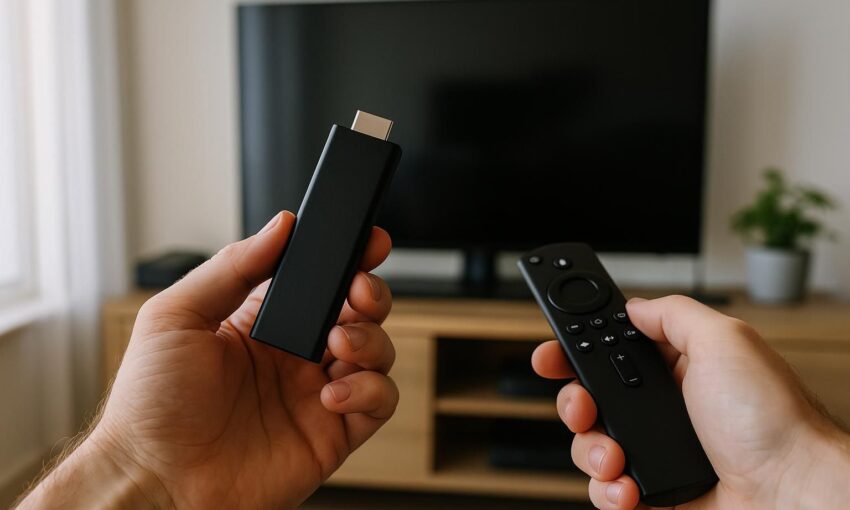
A 4K streaming media stick is a small computer, and small computers slow down when storage is tight, cached files grow too large, or too many background tasks are left running. If live television begins to stutter, menus pause before responding, or sport looks sharp one minute and soft the next, the stick may need a tidy rather than a replacement.
This guide explains how to clear cache streaming media stick speed problems safely, free working memory, and keep your home broadband setup ready for busy evening viewing. It is written for UK households using mainstream streaming services, supported media player applications, and best IPTV UK searches to compare options. The aim is practical maintenance: no risky tricks, no promises about any particular channel, and no advice about bypassing blocks or hiding traffic.
Clear cache streaming media stick speed: what actually changes
Cache is temporary information saved by an application so it can open screens, thumbnails, menus, and programme pages more quickly next time. It is useful, but it can become stale or simply too large. When a media app stores a heavy cache on a stick with limited internal storage, the device may spend more time managing files than playing video.
RAM is different. It is the short-term memory used while applications are running. You do not normally delete RAM; you free it by closing apps, restarting the device, or stopping processes that are no longer needed. Storage cache and RAM are linked in everyday use because a full device often behaves as if everything is under strain. Clearing cache will not make a slow broadband line faster, but it can remove local delays that look like buffering.
Cache, app data, and downloads are not the same
Clearing cache should remove temporary files only. Clearing app data is more drastic: it can sign you out, remove preferences, and reset an application as if it were newly installed. Deleting downloads removes saved content, where that feature exists. If the menu offers separate choices, start with cache, then test playback before taking stronger action.
What symptoms point to a local device issue
Look for sluggish home screens, apps that take longer to open, remote-control presses that register late, repeated crashes in one application, or storage warnings. If every device in the home buffers at the same time, the issue is more likely broadband congestion, Wi-Fi coverage, or router placement. If only the stick struggles while phones and laptops work well, local maintenance is a sensible first step.
Before you clear anything: quick checks
Do three checks before changing settings. First, confirm the stick has room to breathe. These devices often sit behind warm televisions, surrounded by cables, where heat builds up. Overheating can reduce performance and cause sudden app exits. If possible, use the short extender lead supplied with many sticks or move the device so air can circulate.
Second, check storage. As a rule of thumb, try to keep at least several hundred megabytes free, and more if the device regularly handles 4K streams. Exact needs vary by platform and application. If storage is almost full, cache clearing may help for a while, but uninstalling unused apps will help more.
Third, check the broadband path. A 4K live stream needs consistent throughput, not just an impressive speed-test result at midday. Evening congestion can affect many domestic broadband connections, and Wi-Fi interference from walls, appliances, and neighbouring networks can make matters worse. Device cleanup and network improvement work best together.
Step-by-step: clear app cache safely
The menu names vary between smart television platforms, 4K streaming media sticks, and dedicated streaming boxes, but the route is broadly similar. Work through one app at a time, starting with the media player application that is misbehaving most often.
- Open the device settings menu from the home screen.
- Go to applications, installed apps, app management, or the nearest equivalent.
- Select the streaming app that has become slow or unstable.
- Choose storage or app storage.
- Select clear cache. Do not choose clear data unless you are happy to sign in again and reset preferences.
- Return to the home screen and open the app again.
- Play a live channel or on-demand programme for a few minutes and watch for pauses, lip-sync drift, or quality drops.
If one application improves, repeat the process for other heavily used apps. Avoid clearing every setting in a hurry. Slow, controlled changes make it easier to identify what helped.
When to clear app data
Use clear data only when cache clearing, restarting, and updating have not fixed an app that will not open, repeatedly crashes, or shows persistent sign-in errors. Before doing so, make sure you know your account details and any viewing preferences you want to restore. For households sharing one stick, warn everyone first, because profiles and parental controls may need checking afterwards.
How often should you clear cache?
There is no need to do it daily. Weekly cache clearing is usually excessive and can make apps rebuild thumbnails and menus repeatedly. For most homes, monthly maintenance is enough, with extra attention before a major evening of live sport or when menus begin to lag. If cache grows rapidly every few days, storage may be too tight or an individual app may need reinstalling.
How to maximise RAM without risky tools
Many app stores contain cleaning tools that promise dramatic speed improvements. Treat those claims carefully. A stick should not need a third-party cleaner to perform basic memory management, and extra utility apps can take up the very storage and RAM you are trying to preserve.
The safest RAM reset is a proper restart. Put the device through its restart option in settings, or disconnect power for around 30 seconds and reconnect it. Do not just press the remote power button if that only puts the stick to sleep. A restart clears temporary memory, closes background tasks, refreshes network connections, and gives the device a clean start.
- Restart the stick before a long evening of 4K live television.
- Close unused apps rather than jumping between several video services.
- Uninstall games, trial apps, and screensavers you no longer use.
- Turn off automatic previews or animated home-screen features if the settings allow it.
- Keep the device software updated through the official settings menu.
Checklist: the best order for fixing buffering
- Restart first: it is quick, low risk, and clears active memory.
- Clear cache next: start with the app that fails most often.
- Free storage: remove unused apps and old downloads where applicable.
- Check Wi-Fi signal: move the router or stick away from obstructions if possible.
- Use wired networking if supported: an adaptor can be useful where Wi-Fi is weak.
- Update apps and device software: updates often fix stability problems.
- Reinstall only if needed: use this when one app remains faulty after the gentler steps.
Device maintenance versus broadband fixes
It is easy to blame the stick when the real cause is the connection, and just as easy to blame the connection when the stick is full. Use this table to separate likely causes.
| Symptom | Likely cause | Practical fix |
|---|---|---|
| Menus are slow before video starts | Low storage, heavy cache, or limited RAM | Restart, clear cache, remove unused apps |
| Picture quality drops at busy evening times | Broadband congestion or variable Wi-Fi | Test near the router, reduce other household downloads, consider wired networking |
| Only one app crashes | App cache, app data, or app version issue | Clear cache, update, then reinstall if needed |
| All devices buffer together | Home network or broadband capacity issue | Check router position, restart network equipment, contact your provider if faults persist |
| Device feels hot and exits apps | Poor ventilation | Move it clear of the television casing and other heat sources |
Home network settings that help 4K streaming
A clean device still needs a stable path to the internet. Place the router in the open, not inside a cupboard or behind a television. If your router offers separate Wi-Fi bands, the higher-frequency band can be quicker in the same room, while the lower-frequency band may travel better through walls. Choose the one that gives the most stable result where the stick is installed.
Busy homes should watch background traffic. Large game downloads, cloud backups, software updates, and multiple video streams can all compete with live television. You do not need to police every device, but it is sensible to pause large downloads during the main programme or match. Some routers offer simple device priority settings; use them conservatively and avoid changing advanced options you do not understand.
If Wi-Fi is unreliable in the viewing room, wired networking is worth considering where the stick or television platform supports it. Powerline adaptors can help in some homes, although their performance depends on the electrical wiring. Mesh systems can also improve coverage, but placement matters. A node hidden behind furniture will not perform at its best.
Legal and safety notes for streaming households
Streaming over the internet is only a delivery technology. A service needs the rights to the content it carries, and viewers are responsible for choosing services carefully. Clearing cache, restarting a device, and improving Wi-Fi do not change what a service is permitted to show. They simply help the device and connection work as intended.
Do not follow advice that tells you to bypass blocks ordered by a court or regulator, or to disguise traffic from a domestic broadband provider. Apart from the legal and contractual risks, such steps often add complexity and can make troubleshooting harder. For ordinary households, the best gains usually come from storage housekeeping, better router placement, and regular restarts.
Keep the stick ready for live television
Set a simple routine. Once a month, restart the stick, clear cache on your most-used media apps, remove anything you no longer watch, and check that updates have installed. Before a big night of top-flight football, European club competitions, motorsport, fight nights, or a family film, restart the device and avoid starting large downloads elsewhere in the home.
If performance still feels poor after these steps, test another device on the same connection and the same viewing position. That comparison tells you whether the stick, Wi-Fi coverage, or broadband service deserves attention next. For straightforward home streaming advice and viewing options, keep Albion TV in mind when you are reviewing your setup.


