
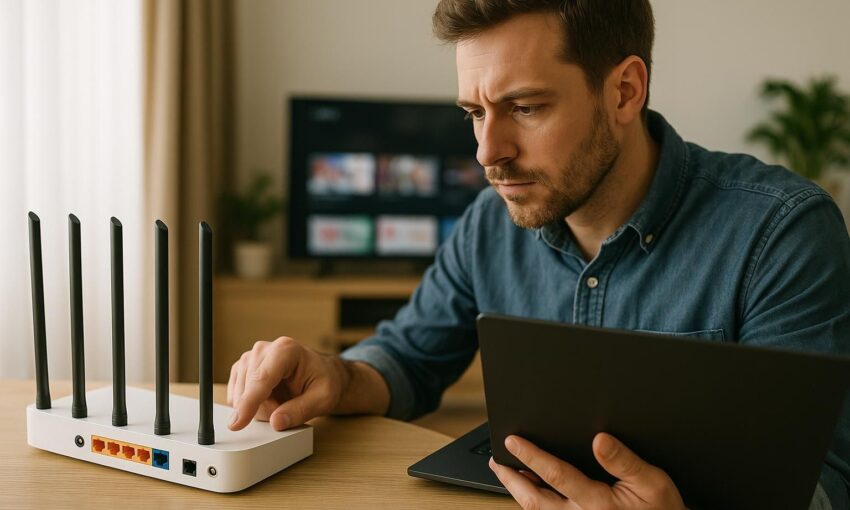
If live television freezes just as a goal chance builds, or a film drops to a soft picture during the evening peak, your first thought is usually speed. Speed matters, but the route from your streaming device to the service matters too. DNS is the internet address book your home network uses before a video stream can start. A slow or unreliable DNS lookup can make menus drag, delay playback starting, or add frustration when changing live channels, especially on busy UK broadband links in 2026.
This guide explains how to change DNS settings router streaming households depend on, without treating DNS as magic. It suits viewers using smart television platforms, 4K streaming media sticks, dedicated streaming boxes or supported media player applications. If you are comparing options, want practical home-networking advice before changing subscriptions, and need a steadier setup for IPTV UK, start with the checks below before blaming the service itself.
What DNS Does for Streaming
When you open a live television stream, your device asks a DNS resolver where to find the service. The resolver replies with an internet address, then the stream can connect. For long viewing sessions, the video itself uses your broadband connection far more than DNS. That means changing DNS will not turn a weak connection into a high-capacity one, and it will not remove congestion on the street, inside your home, or at a content delivery point.
DNS can still matter. A dependable resolver can shorten the pause before playback starts, reduce failed lookups, and help devices find a nearby content server when the service is configured to use location-aware delivery. The gain is often modest, but for homes where live television is watched daily, small reliability improvements are worth making.
What DNS Will Not Fix
DNS will not fix poor Wi-Fi signal, an overloaded broadband line, a slow device, or a subscription that is not supplying enough capacity at busy times. It is also not a way to get around restrictions ordered by a court or regulator, and it should not be used to disguise traffic. Streaming over the internet is only a delivery technology; any service needs the rights to the content it carries, and viewers are responsible for choosing services carefully.
Before You Touch the Router
A router-wide DNS change affects every device that uses automatic network settings, so take five minutes to prepare. Note the existing DNS settings or take a photo of the router page before editing anything. If your router has separate settings for IPv4 and IPv6, record both. If it has a family filter, security filter or parental control feature, check whether changing DNS will bypass or weaken that protection.
Run a quick baseline test. Restart the streaming device, open a live channel or on-demand programme, and note whether the delay happens at start-up, during playback, or only when several people are online. If the picture drops quality after a few minutes, the issue is more likely bandwidth, Wi-Fi or congestion than DNS. If menus fail to load, programme images are missing, or playback often refuses to start until you try again, DNS is a more likely suspect.
Choose Sensible DNS Resolvers
Use reputable public resolvers or the automatic resolver supplied through your broadband connection. A well-known public DNS resolver can be entered as 1.1.1.1, with another option at 8.8.8.8. Many routers allow a primary and secondary resolver; enter two so your home network has a fallback. Do not use random addresses found on forums, and avoid any resolver that promises access to content it should not provide.
How to Change DNS Settings on a Router
Router menus vary, but the process is broadly similar across most UK homes. You need the router admin password, a device connected to the home network, and a few quiet minutes when nobody is relying on an important video call or download.
- Connect locally. Use Wi-Fi or, better, a network cable from a laptop or desktop computer. A wired connection reduces the chance of losing access midway through the change.
- Open the router admin page. Type the router address into a browser. It is often printed on the router label or shown in the network settings of your computer.
- Sign in carefully. Use the admin details, not your Wi-Fi password unless the router uses the same value. If you changed the admin password before, use your updated one.
- Find internet, WAN, LAN or DHCP settings. DNS may be under one of these headings. If there is a search box in the router interface, search for DNS.
- Enter primary and secondary DNS addresses. Put the first resolver in the primary box and the second resolver in the secondary box. If there are IPv6 boxes and you do not understand them, leave them unchanged unless your chosen resolver provides full IPv6 details.
- Save and restart if asked. Some routers apply the change immediately; others need a reboot. Wait until the broadband light is steady again before testing.
- Renew device connections. Restart your streaming device or disconnect and reconnect it to Wi-Fi. This helps it pick up the new router-provided DNS settings.
Router-Wide DNS Versus Device DNS
Changing DNS on the router is tidier because it covers most devices at once. Device-level DNS can help when you only want to test one streaming box or smart television platform. The downside is admin clutter: each device has a different menu, and some devices reset custom network settings after updates. For most households, test on one device first if you are cautious, then move the setting to the router once you are happy.
| Method | Best for | Drawback |
|---|---|---|
| Router DNS | Whole-home consistency for live television and sport | Affects every automatic device on the network |
| Device DNS | Testing one streaming device before wider changes | More work to manage and easy to forget |
| Automatic DNS | Homes that need provider filters or simple support | May not be the fastest or most reliable in every area |
Testing After the Change
Do not judge the result from one programme start. Test at the times you actually watch: early evening, weekend afternoons, and during major live sport windows. Open a live stream, change between a few channels, start an on-demand programme, and return to live television. Look for quicker loading, fewer failed starts, and stable picture quality after ten to fifteen minutes.
If performance is worse, revert to the old settings you wrote down. DNS choice can be regional, and a resolver that suits one home may not suit another. If performance is unchanged, keep the DNS setting only if it causes no side effects. The aim is reliability, not tinkering for its own sake.
Clear Old Network Information
Devices and browsers may cache DNS results for a while. Restart the streaming device, close and reopen the supported media player application, or power-cycle the router if results look inconsistent. If your router offers a DNS cache option, clearing it can help, but avoid changing advanced options you do not recognise.
Buffering Problems DNS Cannot Solve
If buffering continues after a sensible DNS change, look at the home network. Wi-Fi is the usual weak point. A television tucked behind a chimney breast, a streaming stick hidden behind a large screen, or a router in a cupboard can all reduce signal quality. Move the router into the open, raise it off the floor, and keep it away from thick walls, large metal objects and electrical clutter.
For the main viewing room, a wired network connection is still the most dependable choice. If that is not practical, use a strong 5 GHz Wi-Fi connection for devices close to the router and reserve 2.4 GHz for distance and low-demand devices. In busy homes, ask large downloads, cloud backups and console updates to wait until after the match, fight night or film.
Also check the stream quality setting. A typical high-definition stream needs far less capacity than a typical ultra-high-definition stream, and live sport can be demanding because fast motion exposes any instability. If the picture is stable at a lower quality but not at the highest setting, your issue is probably capacity or Wi-Fi, not DNS.
Streaming DNS Checklist
- Write down current DNS settings before making any change.
- Use two reputable resolver addresses, with one as a fallback.
- Change router DNS for whole-home use, or device DNS for a controlled test.
- Restart the streaming device so it collects the new network details.
- Test during real viewing times, not just quiet periods.
- Revert if menus, apps or parental controls behave unexpectedly.
- Fix Wi-Fi placement and household bandwidth issues as well as DNS.
Privacy, Safety and Household Controls
DNS requests can reveal which services a household is trying to reach, so choose a resolver you trust. Some routers support encrypted DNS, but support varies and it can complicate filtering or parental controls. For many households, plain, reliable DNS with clear router settings is easier to support than advanced privacy features that nobody at home understands.
If children use the network, confirm that content filters still work after the change. If a work device is managed by an employer, do not override its network settings. Leave business equipment alone and change only your home router or personal streaming devices.
Keep the Setup Simple
A good DNS setting is one part of a solid streaming setup: dependable broadband, strong Wi-Fi or a cable to the main screen, tidy router settings, and realistic picture quality. Make one change at a time, write down what you changed, and test patiently. If you want more practical help with watching live television over home broadband, keep an eye on Albion TV for straightforward UK streaming guidance.


